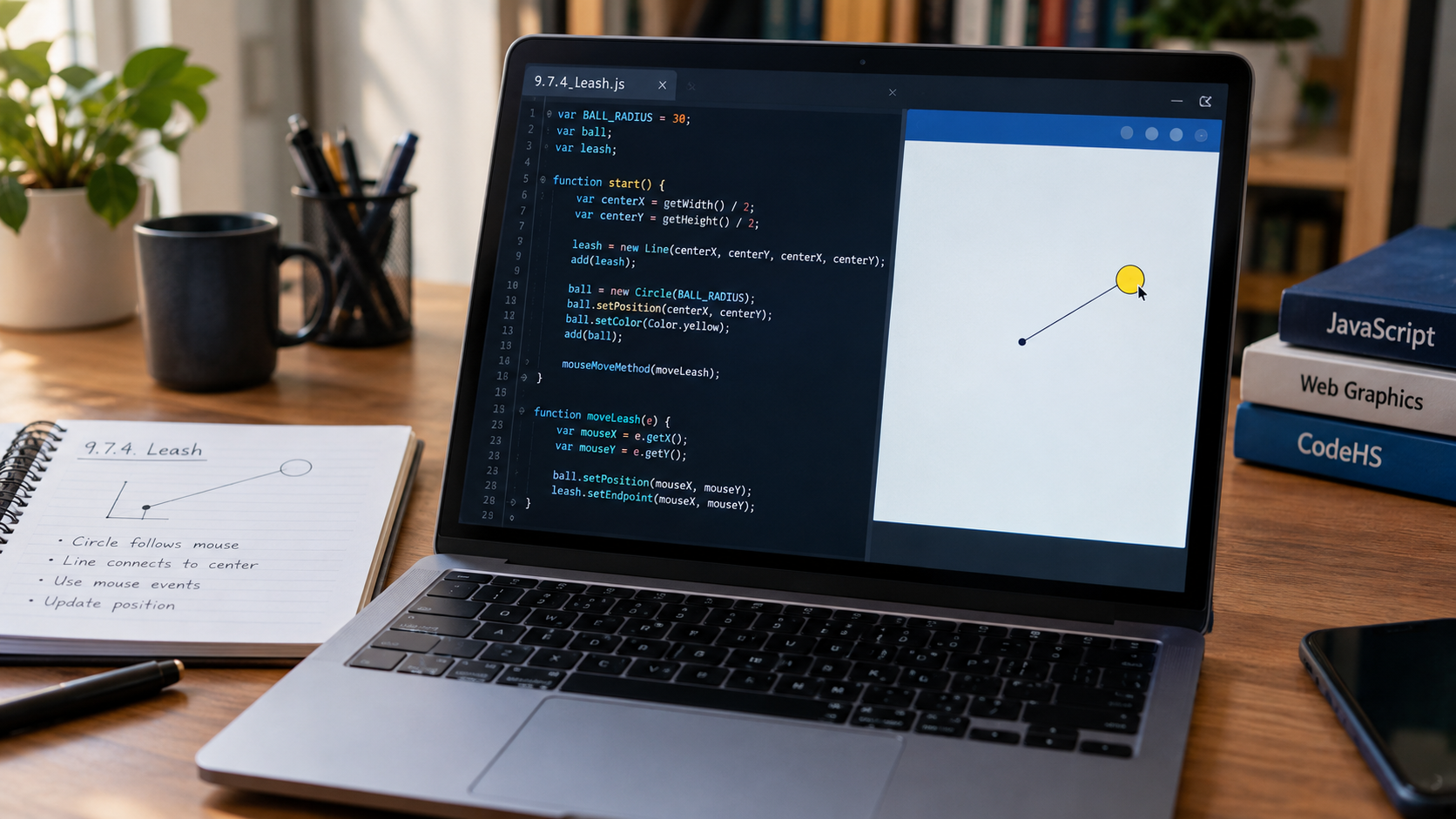
The 9.7.4 Leash exercise is part of CodeHS’s Introduction to Computer Science in JavaScript curriculum. Listed under Lesson 9.7, Drawing Lines, the activity teaches students how to connect a moving circle to a fixed point using JavaScript graphics and mouse events. The official CodeHS course outline confirms the exercise’s title and placement.
The central task is to create a ball that follows the mouse while a line connects it to an anchor point. Both objects must use the same mouse coordinates so the line stays attached to the ball as it moves.
This guide explains a JavaScript solution, breaks down the main functions, and covers common errors that can prevent the program from working as expected. Since CodeHS courses can have different requirements, compare the example with the instructions in your own assignment before submitting it.
Quick Answer: What Is 9.7.4 Leash?
The 9.7.4 Leash exercise uses JavaScript Graphics to create a circle and a line that responds to mouse movement. The circle follows the pointer, one endpoint of the line remains fixed at the center of the canvas, and the other endpoint follows the circle. The main methods involved are Circle(), Line(), mouseMoveMethod(), setPosition(), and setEndpoint(). A typical solution creates both graphics objects inside start(), registers a mouse movement callback, and updates the circle and line inside that callback. The key requirement is that the moving circle and the line endpoint use identical X and Y coordinates.
Complete JavaScript Code Example
The following example demonstrates the expected leash behavior in a CodeHS JavaScript Graphics environment.
var BALL_RADIUS = 30;
var ball;
var leash;

function start() {
    var centerX = getWidth() / 2;
    var centerY = getHeight() / 2;

    leash = new Line(
        centerX,
        centerY,
        centerX,
        centerY
    );
    add(leash);

    ball = new Circle(BALL_RADIUS);
    ball.setPosition(centerX, centerY);
    ball.setColor(Color.yellow);
    add(ball);

    mouseMoveMethod(moveLeash);
}

function moveLeash(e) {
    var mouseX = e.getX();
    var mouseY = e.getY();

    ball.setPosition(mouseX, mouseY);
    leash.setEndpoint(mouseX, mouseY);
}
This is an illustrative implementation of the described behavior, not a verified copy of CodeHS’s private answer key. Check the assigned exercise for any required colors, dimensions, variable names, or other conditions.
How the Code Works
Step 1: Declare the Variables
var BALL_RADIUS = 30;
var ball;
var leash;
BALL_RADIUS determines the circle’s radius. A radius of 30 creates a circle with a diameter of 60 coordinate units.
The ball variable stores the circle object, while leash stores the line object. Both variables are declared outside the functions so the setup function and mouse event handler can access the same objects.
This matters because the program should update the original objects each time the mouse moves. Creating new objects during every event would produce unwanted extra shapes.
Step 2: Find the Center of the Canvas
var centerX = getWidth() / 2;
var centerY = getHeight() / 2;
getWidth() returns the graphics canvas width, and getHeight() returns its height. Dividing each value by two gives the center coordinates.
For example, if the canvas measures 400 units wide and 300 units high, its center is (200, 150).
Calculating the center from the canvas dimensions is more reliable than assuming that every graphics window has the same size.
Step 3: Create the Leash Line
leash = new Line(
    centerX,
    centerY,
    centerX,
    centerY
);
add(leash);
The Line() constructor accepts four coordinates: the starting X and Y positions, followed by the ending X and Y positions.
Both endpoints initially use the canvas center. This creates a line with zero length until the mouse moves and the endpoint changes.
The add(leash) statement places the line on the canvas. The variable retains a reference to that line so the program can update it later.
Step 4: Create and Position the Ball
ball = new Circle(BALL_RADIUS);
ball.setPosition(centerX, centerY);
ball.setColor(Color.yellow);
add(ball);
The Circle() constructor creates the ball using the radius stored in BALL_RADIUS.
The setPosition() method places the circle’s center at the calculated canvas center. setColor() changes its appearance, and add(ball) displays it.
The line is added before the circle so the circle can appear in front of the line where they meet.
Step 5: Register the Mouse Event
mouseMoveMethod(moveLeash);This statement tells CodeHS to call moveLeash when the mouse moves over the graphics canvas.
Notice that moveLeash appears without parentheses. The program passes the function reference to the event system rather than calling the function immediately.
Writing mouseMoveMethod(moveLeash()) would attempt to execute the function during registration. That is different from registering it to handle future events.
Step 6: Read the Mouse Coordinates
function moveLeash(e) {
    var mouseX = e.getX();
    var mouseY = e.getY();
The parameter e represents the mouse event supplied to the callback. Its getX() and getY() methods provide the pointer’s horizontal and vertical coordinates.
The program stores these values in mouseX and mouseY to make the next operations easier to read.
Step 7: Update the Ball and Line
    ball.setPosition(mouseX, mouseY);
    leash.setEndpoint(mouseX, mouseY);
}
The first statement moves the ball to the current mouse position. The second moves the line’s endpoint to those same coordinates.
The line’s starting point remains fixed at the center. As the mouse moves farther away, the line stretches; when the mouse returns to the center, the line becomes shorter.
The key rule: use the same X and Y values for the circle’s position and the line’s moving endpoint.
Step-by-Step Solution Algorithm
If you prefer to understand the logic before writing code, follow these steps.
- Declare variables for the circle and line so both objects remain accessible.
- Calculate the center of the canvas using its width and height.
- Create a line whose two endpoints initially share the center coordinates.
- Create the circle, position it at the center, and add it to the canvas.
- Register the mouse movement callback.
- Read the mouse’s X and Y coordinates whenever the callback runs.
- Move the circle and update the line endpoint using the same coordinates.
- Run the program and test the result at different positions.
This sequence separates initial setup from ongoing interaction. The objects are created once, then updated whenever the mouse moves.
Common 9.7.4 Leash Errors and Their Fixes
The Ball Does Not Move
Check whether mouseMoveMethod() registers the correct function. Then verify that the callback calls ball.setPosition() with the current mouse coordinates.
Also check that ball is declared outside start() and assigned a circle before the callback tries to use it.
The Line Does Not Follow the Ball
The callback may update the circle without updating the line. Confirm that leash.setEndpoint(mouseX, mouseY) is present and uses the same coordinate variables as the circle.
If the two objects receive different values, a visible gap can appear between them.
The Entire Line Moves Instead of Stretching
Check which line method your code uses. The intended behavior requires a fixed starting point and a moving endpoint. Updating the wrong coordinates can cause the anchor to shift.
The Ball Appears Multiple Times
Check whether the callback creates a new Circle() each time the mouse moves. The example creates the ball in start() and updates the existing object afterward.
Repeated object creation is unnecessary for this task and can leave multiple circles on the canvas.
The Program Reports an Undefined Variable
JavaScript variables declared inside a function are generally limited to that function’s scope when declared with var. If a separate callback needs access to a graphics object, make sure the variable is declared where both functions can use it.
Check spelling and capitalization as well. JavaScript treats ball, Ball, and BALL as different identifiers.
The Ball Appears Behind the Line
Graphics layering can depend on the order in which objects are added. In this example, the line is added first and the circle afterward so the circle appears above it.
If the visual result differs, check the order of the add() calls and the graphics behavior supported by your course.
CodeHS Autograder: What Should You Check?
A program can look correct in the graphics window and still fail an assignment’s automated checks. The exact grading criteria for 9.7.4 Leash cannot be confirmed from the public course outline alone, so it would be misleading to claim that the grader always requires a specific color, radius, or variable name.
Use this checklist before submitting:
- Required behavior: Confirm that the circle follows the mouse and the line remains attached.
- Fixed anchor: Verify that the correct endpoint stays at the canvas center.
- Graphics methods: Use the constructors and methods supported by the assigned CodeHS environment.
- Assignment-specific values: Match any explicitly required radius, color, or initial position.
- Program structure: Keep the required startup function and callback registration consistent with the instructions.
- Errors: Resolve syntax errors and undefined-variable messages before testing the final result.
Do not assume that changing a variable name or color will improve the score. Follow the assignment’s stated requirements and the feedback shown by the platform.
How to Test Your Solution
Run the program and begin by checking that the ball appears at the center of the canvas. Move the mouse slowly to the left and right, then upward and downward.
Next, move the pointer toward each corner. The ball should follow the pointer, while the line’s starting point stays fixed. Watch the connection between the circle and the line as you change direction.
Finally, move the pointer back toward the center. The line should shorten as the distance between the anchor and the mouse decreases.
If one part fails, test that part separately. A stationary ball suggests a movement or event-registration problem, while a moving ball with a detached line suggests an endpoint update problem.
Why This Exercise Matters
The Leash exercise introduces event-driven programming through a visual example. The program waits for user input and updates its graphics when that input changes.
The same general approach appears in drawing applications, draggable website elements, and browser-based games. Those projects often track pointer coordinates and use them to update visual objects.
Understanding the relationship between the circle and the line also builds a useful debugging habit: when two objects should remain connected, verify that their dependent coordinates stay synchronized.
For further reading, consult the official CodeHS JavaScript curriculum and MDN’s documentation on JavaScript events.
Final Thoughts
The 9.7.4 Leash exercise teaches a straightforward but important JavaScript graphics concept: a moving object and a line endpoint can share coordinates while the other endpoint stays fixed.
Create the objects during setup, register the mouse event correctly, and update both objects inside the callback. If the program fails, check the event registration, variable scope, and endpoint coordinates before rewriting the entire solution.
Understanding these steps gives students a clearer foundation for later JavaScript graphics exercises and interactive projects.
Frequently Asked Questions
What is the 9.7.4 Leash CodeHS answer?
The exercise can be implemented by creating a circle and a line, placing them at the canvas center, and registering a mouse movement callback. The callback moves the circle and updates the line’s endpoint using the same mouse coordinates.
What does mouseMoveMethod() do?
It registers a function to respond to mouse movement in the CodeHS graphics environment. The callback receives event information that can be used to update objects.
Why are ball and leash global variables?
They allow the setup function and mouse callback to access the same graphics objects. This lets the program update existing objects instead of creating new ones during every mouse event.
What do e.getX() and e.getY() return?
They provide the mouse event’s horizontal and vertical coordinates. The callback uses these values to determine where the ball should move and where the line endpoint should go.
Why use getWidth() / 2 and getHeight() / 2?
These calculations identify the center of the canvas based on its dimensions. They avoid hardcoding a center point that might not match the graphics window.
Does this solution guarantee full credit?
No example can guarantee full credit without checking the actual assignment requirements and grading feedback. Compare the code with the instructions in your CodeHS course and adjust any required values or behavior.