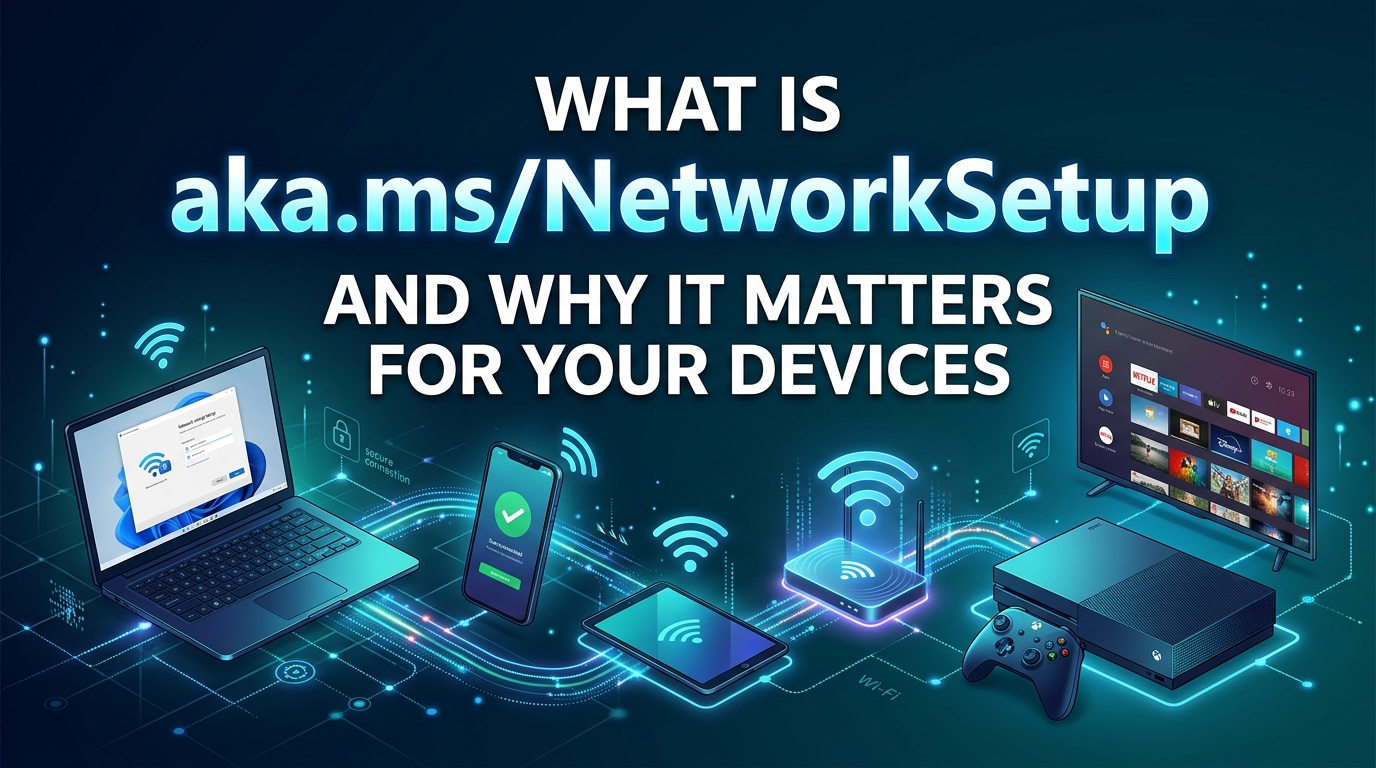
A computer that cannot connect to the internet during Windows setup can be difficult to configure, especially when the Wi-Fi option is missing or the available networks do not appear. Users searching for aka.ms/NetworkSetup usually want to understand the address and find a practical way to resolve their connection problem.
The issue often appears when setting up a new laptop, reinstalling Windows, or resetting a computer. In some cases, the router is responsible. In others, Windows cannot recognize the wireless network adapter because the correct driver is missing.
Understanding the cause helps you choose the right solution instead of downloading unnecessary software or changing settings that have nothing to do with the problem.
Quick Answer: What Is aka.ms/NetworkSetup?
aka.ms/NetworkSetup is a Microsoft-related short-link address associated with Windows network setup troubleshooting. Users commonly search for it when Windows cannot connect to the internet during the initial device setup process. The underlying issue may involve a missing Wi-Fi driver, an unavailable router, an incorrect wireless password, or an unsupported network configuration. Start by checking whether other devices can connect to the same network. If the computer cannot detect any Wi-Fi networks, try Ethernet or use another internet-connected device to obtain the correct wireless driver from the computer manufacturer’s official support page. Copy the required driver files to a USB drive and follow Microsoft’s or the manufacturer’s installation instructions. The short link itself should not be treated as a universal driver installer or a guaranteed fix for every connection error.
Key Takeaways
- The address relates to Windows troubleshooting: Confirm that the destination is an official Microsoft page before following instructions or downloading software.
- Missing Wi-Fi networks may indicate a driver issue: Check the wireless adapter and install a compatible driver for your exact computer model.
- Simple checks can save time: Test the router, verify the password, and try Ethernet before making advanced changes.
- Windows updates may take time: Download and installation times depend on connection speed, update size, and computer hardware.
- Avoid unofficial driver downloads: Use Microsoft Support or your computer manufacturer’s official website.
What Does aka.ms/NetworkSetup Mean?
Microsoft uses the aka.ms domain for shortened web addresses. These addresses direct users to particular online resources, although the destination can vary according to the specific link.
The keyword aka.ms/NetworkSetup is associated with questions about Windows network setup. People often search for it after encountering the Windows welcome screen that asks them to connect to a network.
This screen is part of the Windows Out-of-Box Experience, commonly known as OOBE. It appears when a computer is configured for its first use or goes through a fresh Windows installation.
Depending on the Windows edition and setup process, an internet connection may be required to finish configuring the device. Windows can also download critical updates and drivers after a connection becomes available.
For official instructions, consult Microsoft’s guide to getting connected during Windows setup.
Why Does Windows Network Setup Fail?
The error does not always have one cause. Identifying the symptoms helps narrow down the possible solution.
1. Missing Wi-Fi Drivers
A wireless adapter needs a compatible driver to communicate correctly with Windows. If the driver is absent or incompatible, the computer may fail to display nearby Wi-Fi networks.
This problem can occur after a clean Windows installation, particularly when the installation media does not include the necessary driver for the computer’s wireless hardware.
2. Router or Internet Service Problems
Sometimes Windows detects the Wi-Fi network but cannot establish an internet connection. A router problem, temporary service interruption, or incorrect network configuration may be responsible.
Test the same network with a phone or another computer. If those devices also fail to connect, investigate the router or internet service before changing Windows settings.
3. Incorrect Wi-Fi Password
An incorrect password can prevent Windows from joining a protected wireless network. Check the password carefully, including capital letters, numbers, and special characters.
If the password is correct, try reconnecting to the network or testing another trusted connection.
4. Wi-Fi Frequency Compatibility
Some older wireless adapters do not support every frequency band offered by modern routers. If the router uses a frequency that the adapter cannot detect, its network may not appear in the list.
Check the specifications of both devices. If the router supports another compatible band, test that network before changing advanced settings.
5. Disabled or Faulty Network Adapter
A disabled wireless adapter can prevent Windows from finding nearby networks. A hardware fault may cause similar symptoms.
Once Windows is accessible, check Device Manager to see whether the adapter appears under Network adapters. If it is missing, inspect the manufacturer’s support documentation and determine whether a driver or hardware check is necessary.
How to Fix aka.ms/NetworkSetup Connection Problems
Follow these troubleshooting steps in order. Begin with basic checks and move to driver installation only when necessary.
Step 1: Check Your Internet Connection
Use another device to connect to the same Wi-Fi network.
If the second device also has connection problems, restart the router and modem according to their manufacturer’s instructions. Allow the equipment to reconnect before trying Windows setup again.
If the other device works normally, focus on the computer that cannot connect.
Step 2: Restart Your Router
A router restart can resolve temporary connection problems.
- Save any work that depends on the connection.
- Restart the router using its power button or the manufacturer’s recommended procedure.
- If you have a separate modem, follow its restart instructions too.
- Wait until the connection and status lights indicate that the equipment is ready.
- Try connecting Windows again.
A restart will temporarily disconnect other devices, so consider this before interrupting a shared connection.
Step 3: Connect Through Ethernet
A wired connection is a useful alternative when Wi-Fi is unavailable during setup.
Connect an Ethernet cable from the computer to an available router port. If your laptop does not have an Ethernet port, a compatible USB-to-Ethernet adapter may work.
Return to the Windows setup screen and check whether the wired connection is recognized.
If Ethernet works, complete the setup and check Windows Update for available network drivers. If it does not work, the problem may involve the Ethernet adapter, its driver, or the router.
Step 4: Try a Mobile Hotspot
A mobile hotspot can provide a temporary connection if your usual router is unavailable.
Enable the hotspot on a phone or another supported device with active mobile data. Select the hotspot’s network name on the Windows setup screen and enter its password.
Monitor your mobile data usage. Windows may download updates after connecting, and some downloads can be large.
If the hotspot appears but the computer cannot connect, check the password and confirm that the hotspot’s compatibility settings support the computer’s wireless adapter.
Step 5: Download the Correct Wi-Fi Driver
If Windows shows no available wireless networks, a missing driver may be the cause.
Use another computer with internet access to visit the official support website for your laptop or motherboard manufacturer. Search for your exact model and select the appropriate Windows version.
Download the wireless network driver, then follow the manufacturer’s instructions to extract and copy the required files to a USB drive.
Microsoft’s setup guidance specifies that, for its documented manual driver procedure, the required .inf file must be in the root directory of the USB drive rather than inside a subfolder.
Connect the USB drive to the computer that is being configured and follow the documented installation process. Once the driver is installed, check whether Wi-Fi networks appear.
Do not assume that a driver for a similar model will work. Manufacturers sometimes use different wireless adapters in computers with similar product names.
Step 6: Check Device Manager
If you can access the Windows desktop, open Device Manager from the Start menu.
Expand Network adapters and look for the wireless adapter. Check whether it is disabled or displays a warning symbol.
If the adapter is disabled, enable it. If the driver is missing or appears to have a problem, obtain the appropriate version from the manufacturer’s official support page.
If the wireless adapter does not appear at all, check for an unidentified network controller and review the computer’s hardware documentation. Windows may not recognize the device until its driver is installed.
Step 7: Update Windows
Once you have a working connection, open Settings and select Windows Update.
Check for available updates and install those appropriate for your device. Some updates include important driver or security fixes.
Keep the computer connected to power during larger updates and allow the installation to finish. Microsoft notes that certain updates during Windows 11 setup can take 30 minutes or longer, depending on download size, network conditions, and hardware.
Step 8: Troubleshoot Wi-Fi After Setup
If Windows setup has finished but the connection still fails, use the built-in network troubleshooting tools.
On Windows 11, open Settings, select Network & internet, and run the available network diagnostics through the Get Help application.
You can also turn Wi-Fi off and back on, confirm that Airplane mode is disabled, and reconnect to your saved network.
For further instructions, consult Microsoft’s official Wi-Fi troubleshooting guide.
Comparing Common Network Setup Solutions
The most appropriate fix depends on the symptoms. The following estimates are general planning ranges, not results from controlled performance tests.
| Solution | Best Use | Estimated Time | Typical Cost |
|---|---|---|---|
| Router restart | Temporary router or connection issue | 2 to 5 minutes | Usually free |
| Check Wi-Fi password | Authentication error | 1 to 3 minutes | Free |
| Ethernet connection | Wi-Fi unavailable during setup | 2 to 10 minutes | Free if equipment is available |
| Mobile hotspot | Temporary alternative connection | 3 to 10 minutes | Mobile data may cost extra |
| Install Wi-Fi driver | Missing or incompatible driver | 10 to 30 minutes | Usually free |
| Windows Update | Driver and operating system updates | 10 minutes or longer | Usually free, excluding internet costs |
| Hardware inspection | Adapter is not detected or may be damaged | Varies | Depends on the repair |
A router restart is a sensible first step when several devices have the same issue. Driver installation is more appropriate when the computer cannot detect wireless networks but other devices connect normally.
There is no single fix time for every computer. Driver compatibility, internet speed, and the condition of the hardware all affect the outcome.
Important Safety Checks Before Installing Drivers
Driver downloads should come from trusted sources. An unofficial download may contain the wrong driver or unwanted software.
Before installing a package:
- Verify the exact computer model.
- Confirm the Windows version and system architecture where applicable.
- Check that the download comes from the manufacturer’s official support website.
- Read the installation instructions before extracting or running files.
- Keep a copy of any necessary driver files before removing an existing driver.
Avoid paying for a third-party utility that claims to fix every Windows network problem automatically. Basic troubleshooting instructions and many manufacturer-provided drivers are available without purchasing a separate repair application.
Common Mistakes to Avoid
Assuming the Short Link Installs a Driver
The address is not a universal driver installer. Follow the instructions on its verified destination and use the correct driver for your hardware.
Reinstalling Windows Too Quickly
A missing Wi-Fi driver does not automatically mean that Windows needs to be reinstalled. Check the network adapter and try the official driver procedure first.
Resetting Every Network Setting
Advanced resets can remove saved network configurations and affect VPN software or virtual network adapters. Use them only when simpler solutions have failed and you understand the possible consequences.
Ignoring the Computer Manufacturer
Microsoft provides general Windows guidance, while the computer manufacturer can identify the driver intended for a specific model. Both sources can be useful when diagnosing a connection problem.
Final Thoughts
The aka.ms/NetworkSetup search term is relevant to people who encounter network connection problems during Windows setup. The most effective solution depends on the symptoms, whether the computer detects its wireless adapter, and whether other devices can connect to the same network.
Start with the router and connection checks. If Wi-Fi networks remain unavailable, investigate the adapter and obtain the correct driver from an official source. After the connection works, install appropriate Windows updates and confirm that the computer can reconnect normally.
For readers, the goal is to identify the actual cause without downloading questionable software or making unnecessary system changes. For XbirMedia, clear instructions, accurate sourcing, and a useful explanation of each troubleshooting step will make this article more helpful than a page that simply repeats the keyword.
Frequently Asked Questions
What is aka.ms/NetworkSetup used for?
The search term is associated with Windows network setup troubleshooting. Users commonly look for it when they cannot connect to the internet during the initial Windows configuration process.
Is aka.ms/NetworkSetup an official Microsoft address?
The aka.ms domain is used for Microsoft short links. However, verify the destination of the exact address before entering information or downloading anything. Do not assume that every third-party page mentioning the keyword is operated by Microsoft.
Why does Windows 11 show no Wi-Fi networks?
Possible causes include a missing wireless driver, a disabled adapter, incompatible Wi-Fi frequencies, or a hardware problem. Check the adapter and consult the computer manufacturer’s official support page.
Can I complete Windows setup without Wi-Fi?
An Ethernet connection or a supported cellular connection may provide an alternative. Windows Home and Pro generally require an internet connection to finish the standard initial setup process, although requirements and available options can vary by edition and configuration.
Do I need to pay to fix aka.ms/NetworkSetup errors?
A separate paid application is not normally necessary for basic troubleshooting. Internet access, replacement hardware, or professional repairs may involve costs, depending on the problem.
What should I do if installing the driver does not help?
Check that the driver matches your exact computer model and Windows version. If the adapter remains undetected, review the manufacturer’s troubleshooting guidance or contact its support team to investigate a possible hardware problem.