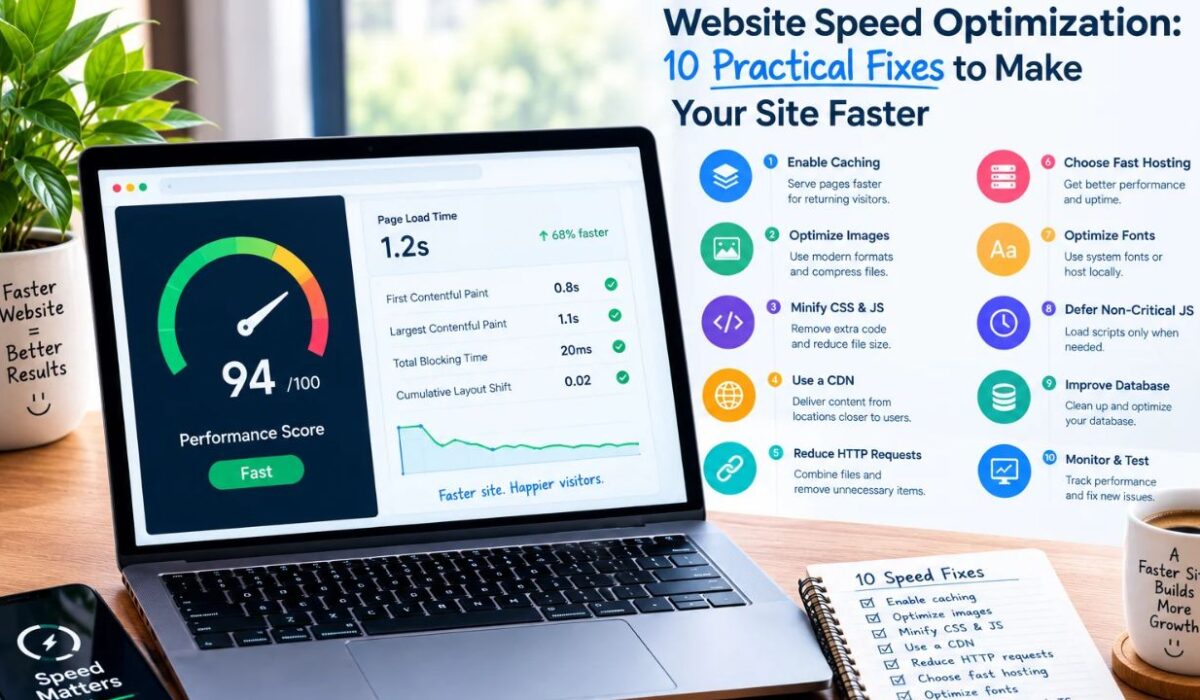
Website speed affects how visitors experience your website. When pages take too long to load, users may leave before reading an article, exploring a product, or completing an important action. A slow website can also make navigation feel frustrating, especially on mobile devices and slower internet connections.
Website speed optimization involves improving the way a website loads, displays content, and responds to user interactions. It includes image compression, caching, hosting performance, code optimization, and several other technical improvements. The right changes depend on what is actually slowing your website down.
This guide explains 10 practical ways to improve website speed, how to measure performance with Google PageSpeed Insights, and which WordPress improvements are worth considering first. The goal is to help website owners make informed changes instead of installing multiple plugins or following random optimization tips.
Quick Answer: How Can You Make a Website Faster?
Start by testing your important pages with Google PageSpeed Insights. Then optimize large images, enable suitable caching, remove unnecessary plugins and scripts, review your hosting performance, and address the specific Core Web Vitals issues identified in your report. Retest after each significant change to confirm that performance has improved without breaking your website.
What Is Website Speed Optimization?
Website speed optimization is the process of reducing unnecessary delays when a visitor opens or interacts with a webpage. It involves improving server response, reducing the amount of data transferred, optimizing how resources load, and making the page responsive to user actions.
Website speed is not determined by one factor. A page might have small images but still load slowly because its server responds late. Another page might appear quickly but feel unresponsive when a visitor opens a menu or submits a form.
For this reason, effective optimization considers three related areas: loading performance, interaction responsiveness, and visual stability. These are measured through several performance metrics, including Google’s Core Web Vitals.
Why Website Speed Matters
A faster website makes it easier for visitors to reach the information they need. Readers can move between articles more comfortably, customers can browse product pages with fewer delays, and users can interact with forms and navigation more smoothly.
Performance also matters for search visibility. Google uses page experience signals, including Core Web Vitals, within its broader ranking systems. However, good scores do not guarantee high rankings. Content relevance, usefulness, competition, links, and other factors remain important.
Website speed can also affect business outcomes. If a checkout page freezes or a contact form responds slowly, visitors may struggle to complete their intended tasks. Improving performance can reduce these barriers, although the actual effect depends on the audience and the website.
How to Check Your Website Speed With Google PageSpeed Insights

Before changing your website, establish a performance baseline. Testing first helps you identify real problems and compare results after making improvements.
Google’s PageSpeed Insights analyzes a webpage and provides performance metrics alongside suggestions for improvement. Depending on available data, the report may include field data from real users and lab data collected under controlled testing conditions. These two data sources serve different purposes. Field data reflects real-world experiences, while lab data helps developers investigate specific issues.
Follow these steps:
- Open Google PageSpeed Insights.
- Enter the URL of the page you want to test.
- Select Analyze and wait for the report.
- Review the mobile and desktop results separately.
- Examine the Core Web Vitals and the recommendations under diagnostics and opportunities.
- Record the results before making changes.
Start with important pages, such as your homepage, a popular article, and a category page. Different pages may use different images, scripts, and layouts, so one test cannot explain the performance of your entire website.
Remember that a performance score is a diagnostic signal, not a complete measure of user experience. Use the underlying metrics and recommendations to decide what to fix.
Understanding Google’s Core Web Vitals
Core Web Vitals measure important aspects of real-world page experience. Google currently uses three main metrics: Largest Contentful Paint (LCP), Interaction to Next Paint (INP), and Cumulative Layout Shift (CLS). Each measures a different part of the experience.
| Metric | What it measures | Good target |
|---|---|---|
| Largest Contentful Paint (LCP) | How quickly the main content appears | 2.5 seconds or less |
| Interaction to Next Paint (INP) | How quickly the page responds to interactions | 200 milliseconds or less |
| Cumulative Layout Shift (CLS) | How much visible content shifts unexpectedly | 0.1 or less |
These targets are assessed at the 75th percentile of page loads, rather than requiring every visit to achieve the same result.
LCP: A slow LCP can result from a slow server, a large hero image, render-blocking resources, or inefficient loading of the main content.
INP: Poor INP can indicate that JavaScript is keeping the browser busy or that an interaction requires too much processing.
CLS: Layout shifts often happen when images lack reserved dimensions, advertisements appear unexpectedly, or late-loading elements push existing content down the page.
Understanding which metric is weak helps you select the right solution instead of applying every optimization technique at once.
10 Practical Website Speed Optimization Fixes
1. Optimize Images Before Uploading

Large images are a common source of unnecessary page weight, particularly on blogs and online magazines. Uploading a high-resolution photograph directly from a camera can make a page much heavier than necessary.
Resize images to dimensions appropriate for their display area, compress them, and use a suitable format. WebP and AVIF can provide efficient compression when supported by your workflow. Keep enough quality to ensure that photographs, diagrams, and screenshots remain clear.
For example, a small article thumbnail does not need to use the same dimensions as a full-width hero image. Providing responsive image sizes allows browsers to select an appropriate file for different screens.
Also, avoid lazy-loading the main image when it is the page’s likely LCP element. Lazy-loading images further down the page can reduce unnecessary initial downloads, but the main above-the-fold image should be available promptly.
What to do: Review your largest images first, compress them, specify image dimensions, and use responsive image settings. Recheck the page afterward to ensure the images still look good.
2. Enable Appropriate Caching

Caching stores reusable versions of website content or resources so they do not need to be generated or downloaded from scratch on every visit. It can reduce server work and help repeat visits load more quickly.
WordPress websites can use page caching, browser caching, and, where appropriate, object caching. The right configuration depends on your hosting setup and whether your pages contain dynamic content.
A caching plugin can be useful, but installing one does not automatically mean caching is configured correctly. Some hosting providers already provide server-level caching, and overlapping settings can cause conflicts.
What to do: Check your hosting dashboard first. Enable a compatible caching solution, clear the cache after important changes, and verify that pages, menus, forms, and logged-in functionality still work as expected.
3. Remove Unnecessary Plugins and Scripts

Every plugin adds functionality, but some also load additional CSS, JavaScript, fonts, or database queries. The impact varies by plugin and configuration, so the total number of plugins alone does not determine whether a WordPress website is slow.
Review plugins that duplicate features, are no longer used, or add elements that visitors rarely need. Third-party widgets, tracking scripts, chat tools, and embedded content can also affect performance.
Do not remove a plugin simply because it appears in a performance audit. First confirm what it does and whether another part of the website depends on it.
What to do: Create a backup, review your active plugins, and remove unnecessary tools carefully. Test your important pages after each change. If a specific plugin appears responsible for a slowdown, investigate its settings or consider a suitable alternative.
4. Choose Hosting That Matches Your Website

Your hosting environment influences server response time, available resources, and the website’s ability to handle traffic. A small publication may work adequately on shared hosting, while a growing site with heavy traffic or complex functionality may need more resources.
Before upgrading, investigate whether the problem actually comes from hosting. Large images, inefficient scripts, and missing caching can make a website slow even when the server is adequate.
Compare hosting options based on resource limits, server location, caching support, reliability, backups, and support quality—not just introductory pricing.
What to do: Check server response recommendations in your performance report and review resource usage with your host. If the server regularly struggles under normal traffic, discuss suitable upgrades or migration options.
5. Reduce Unnecessary JavaScript

JavaScript powers many interactive website features, but excessive scripts can delay rendering or make the browser less responsive. Analytics, advertising, page builders, animations, and third-party integrations may all contribute.
Minification removes unnecessary characters from code files. Deferring or delaying nonessential scripts can also help, provided the changes do not break features or prevent important content from appearing.
Combining every script into one file is not always the right solution on modern websites. The best approach depends on how resources are delivered and which scripts are actually needed.
What to do: Use PageSpeed Insights and browser developer tools to identify expensive scripts. Remove unused features, load noncritical resources later where appropriate, and test menus, forms, search, and other interactive elements after changes.
6. Reduce Render-Blocking CSS and Fonts

Browsers need certain stylesheets and resources before they can display a page correctly. Large stylesheets, unnecessary font files, and poorly organized CSS can delay the initial rendering of content.
Using fewer font families and weights can reduce downloads. Loading only the styles needed for the initial view may also help, while carefully handling critical CSS can allow important content to appear sooner.
Avoid removing styles blindly. A page may become faster in one test but display incorrectly on mobile devices or in different browsers.
What to do: Review unused CSS, remove unnecessary font variations, and use sensible font-display settings. If you use a performance plugin to optimize CSS, test the page visually after enabling each major option.
7. Use a Content Delivery Network When Appropriate

A content delivery network (CDN) stores or serves eligible resources through servers distributed across different locations. Visitors can receive cached images, stylesheets, scripts, and other assets from a location closer to them.
A CDN can be especially useful when your audience is spread across several countries or when your origin server is far from many visitors. However, it will not automatically fix oversized images, inefficient JavaScript, or slow database queries.
Some hosting providers already include CDN services, so check your existing setup before purchasing another one.
What to do: Identify where most of your audience is located, review your hosting’s CDN options, and test important pages after configuration. Confirm that images, fonts, and other assets load correctly.
8. Improve Mobile Performance

A website may appear fast on a powerful desktop connection but feel much slower on a phone. Mobile devices can have limited processing power, and visitors may use less reliable connections.
Responsive design helps content fit different screens, but mobile performance requires more than changing the layout. Large images, heavy animations, excessive scripts, and intrusive pop-ups can still create problems.
What to do: Run PageSpeed Insights using the mobile report. Reduce unnecessary elements above the fold, optimize the main image, simplify interactions, and make buttons and navigation easy to use. Test the actual mobile layout instead of relying only on a desktop preview.
9. Keep Your WordPress Theme and Software Updated

Outdated software can create compatibility, security, and maintenance problems. Updates may also include performance improvements, although the results depend on the particular release.
A lightweight, well-maintained theme can help reduce unnecessary page elements and code. However, switching themes solely to improve a score may introduce layout problems or remove important functionality.
What to do: Keep WordPress, your theme, and plugins updated. Back up the website before major changes and test updates on a staging site when possible. Review whether your current theme and page builder provide features you actually use.
10. Measure Changes and Avoid Over-Optimization

Website speed optimization is an ongoing process. A change that helps one page may have little effect on another, and some aggressive settings can create new problems.
For example, delaying all JavaScript may interfere with menus or consent controls. Lazy-loading every image can delay the main image. Combining scripts without testing may break interactive components.
What to do: Make one group of changes at a time, retest the same pages, and compare the results. Keep a record of what you changed so you can identify the cause if performance or functionality gets worse.
The aim is not to achieve a perfect score at any cost. It is to deliver a reliable, responsive experience to real visitors.
WordPress Website Speed Optimization: Where Should You Start?
If your website runs on WordPress, start with the improvements that are easiest to verify and least likely to break functionality.
| Priority | Action | Why it matters |
|---|---|---|
| 1 | Test key pages with PageSpeed Insights | Identifies the actual issues |
| 2 | Optimize large images | Reduces page weight |
| 3 | Review caching | Reduces repeated processing |
| 4 | Remove unnecessary plugins | Can reduce scripts and server work |
| 5 | Check theme and hosting performance | Addresses structural bottlenecks |
| 6 | Retest mobile and desktop | Confirms the effect of changes |
Avoid installing several performance plugins that provide overlapping features. Choose a solution compatible with your host, configure it carefully, and test the website after each major change.
If you are unsure which settings to enable, start with image optimization and the caching options recommended by your hosting provider. More advanced CSS and JavaScript optimization should come after you have a working baseline.
Common Website Speed Optimization Mistakes
Some optimization attempts make little difference because they target the wrong problem. Others improve a test score while making the website harder to use.
- Chasing a perfect score: Focus on meaningful performance issues rather than treating 100 as a requirement.
- Compressing images too aggressively: Smaller files are useful only if the images remain clear and readable.
- Enabling every optimization setting at once: This makes problems difficult to diagnose and can break website features.
- Ignoring mobile results: Desktop performance does not necessarily reflect the experience of mobile visitors.
- Using multiple caching systems without checking compatibility: Overlapping settings can cause stale content or unexpected behavior.
- Failing to retest: Without checking after changes, you cannot reliably determine whether an optimization helped.
A measured process is safer and more effective than applying a long list of technical settings without understanding their purpose.
Final Thoughts
Website speed optimization is not about applying every available technical trick. It is about identifying the issues that slow down your pages and fixing them in a controlled, measurable way.
Start with PageSpeed Insights, prioritize image optimization and suitable caching, review unnecessary plugins and scripts, and investigate hosting when the evidence points to a server problem. Then measure the results and make sure the website still works correctly.
For XbirMedia and other content-focused websites, fast-loading article pages, stable layouts, readable text, and smooth mobile navigation all contribute to a better reading experience. Consistent improvements are more valuable than chasing a perfect score without understanding what the report is telling you.
Frequently Asked Questions
What is website speed optimization?
Website speed optimization is the process of improving how quickly a website loads, displays content, and responds to interactions. It can involve image compression, caching, code improvements, hosting changes, and Core Web Vitals fixes.
How can I check my website speed for free?
Use Google PageSpeed Insights. Enter a page URL to review its performance metrics and suggested improvements. Test important pages separately because their results may differ.
What is a good website speed score?
PageSpeed Insights provides performance scores, but there is no single score that guarantees a good user experience or high rankings. Review the underlying metrics and Core Web Vitals, along with how the website behaves for actual visitors.
Does website speed affect Google rankings?
Page experience, including Core Web Vitals, is part of Google’s broader ranking considerations. However, good performance does not guarantee top rankings, and speed is only one part of an effective SEO strategy.
What are Core Web Vitals?
Core Web Vitals are metrics that evaluate loading performance, interaction responsiveness, and visual stability. They are measured through LCP, INP, and CLS, each with its own recommended thresholds.
Which WordPress plugin is best for website speed optimization?
There is no universal best plugin for every WordPress website. The right option depends on your hosting provider, existing caching, theme, and required features. Check whether your host already provides performance tools before adding another plugin.
Can I improve website speed without changing hosting?
Yes. Image optimization, caching, removing unnecessary scripts, and fixing inefficient page elements may improve performance without a hosting change. If the server itself is consistently slow or lacks resources, however, you may need to discuss the issue with your provider.
How often should I test website speed?
Test after significant design, plugin, theme, or hosting changes. Periodic checks are also useful when adding new features or publishing pages with large media files. Monitor trends rather than relying on one test.