JavaScript makes modern websites interactive, but too much JavaScript can also make a page feel slow. When the browser has to parse, compile, and execute large amounts of JavaScript, it spends more time working before it can respond smoothly to visitors.
This becomes particularly noticeable on mobile devices, where processing power may be lower than on a desktop computer. A page can have a fast server response and optimized images but still feel sluggish because the browser is busy processing JavaScript.
Reducing JavaScript execution time is therefore an important part of website performance optimization. The goal is not to remove JavaScript completely. Instead, you want the browser to do less unnecessary work and prioritize the code required for the current page and its most important interactions.
What Is JavaScript Execution Time?
JavaScript execution time is the amount of time the browser spends processing and running JavaScript code.
When a visitor opens a webpage, the browser does more than download HTML, CSS, images, and scripts. It must also parse JavaScript, compile it, execute functions, respond to events, and perform other tasks requested by the code.
If JavaScript takes too long to execute, other browser tasks can be delayed.
For example, a visitor may see part of a page but experience a delay when trying to open a menu, click a button, enter information into a form, or interact with another element.
This is why JavaScript performance is about more than file size. A relatively small script can still create performance problems if it requires substantial processing.
Why Does JavaScript Take So Long to Execute?
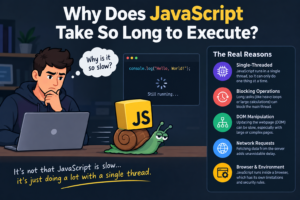
Several factors can increase JavaScript execution time.
Too Much JavaScript
A website may load more JavaScript than visitors actually need.
Plugins, themes, analytics systems, advertising platforms, chat widgets, marketing tools, and other integrations can all add code. Over time, these additions can turn into a large amount of JavaScript that the browser must process.
The problem is often cumulative rather than caused by one single script.
Unused JavaScript
Some websites send JavaScript to every page even when only a small portion of it is needed.
For example, a plugin may add its scripts site-wide even though its functionality is used on only one or two pages.
Visitors still have to download and potentially process that code.
Removing unnecessary resources or preventing them from loading where they are not needed can reduce browser work.
Large Third-Party Scripts
Third-party services can also contribute to JavaScript execution time.
Analytics, advertising, social media tools, customer-support widgets, tracking systems, and embedded services may all introduce external JavaScript.
Some services also load additional scripts after the initial file has been downloaded.
This is one reason it is useful to audit third-party scripts separately rather than looking only at your own website’s JavaScript.
Long JavaScript Tasks
A long task occurs when the browser spends an extended period working on a single task without giving the main thread enough opportunity to respond to other work.
Long tasks can make a website feel unresponsive.
Instead of treating all JavaScript as equally problematic, it is more useful to identify the specific tasks consuming the most main-thread time.
How to Check JavaScript Execution Time
Before changing your website, measure the problem.
Use PageSpeed Insights
Google PageSpeed Insights can provide useful information about JavaScript-related performance problems.
Depending on the page, the report may identify opportunities involving unused JavaScript, excessive JavaScript execution, main-thread activity, or other performance issues.
Use the report as a starting point rather than treating every recommendation as an instruction to remove code.
A script may be necessary for an important feature, so understanding its purpose matters.
Use Chrome DevTools
Chrome DevTools provides a more detailed view of what the browser is doing.
Open the page in Chrome, right-click, select Inspect, and open the Performance panel.
Record a page load or interaction and examine the resulting timeline.
You can look for:
- Long JavaScript tasks
- Heavy scripting activity
- Functions consuming significant processing time
- Repeated event handlers
- Layout and rendering work triggered by JavaScript
- Script activity during important interactions
The Performance panel is particularly useful because it shows what happens during the actual browser experience rather than simply listing the files loaded by a page.
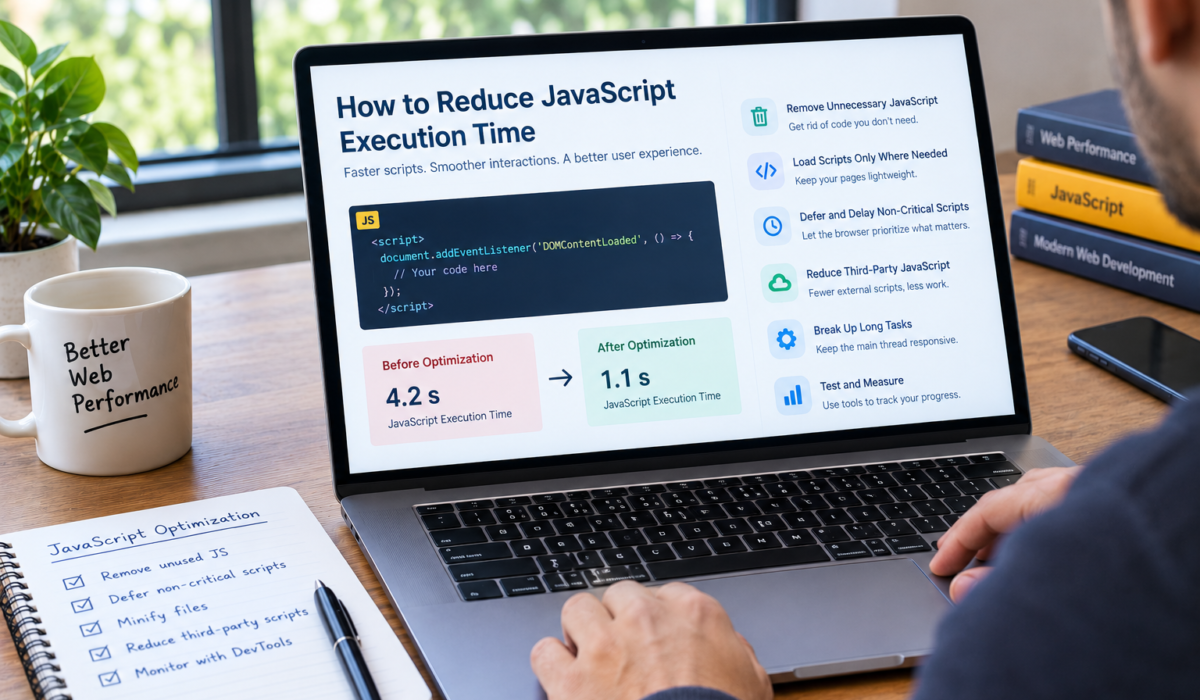
1. Remove JavaScript You Do Not Need
The simplest optimization is often removing unnecessary code.
Review the plugins, themes, integrations, and services that add JavaScript to your website.
Ask whether each script is still required.
Old tracking systems, abandoned experiments, unused widgets, and duplicate services are common sources of unnecessary code.
If a feature is no longer used, removing the feature and its associated scripts can be more effective than trying to optimize the code itself.
2. Load JavaScript Only Where It Is Needed
Not every script needs to load on every page.
A booking system, contact widget, product filter, or specialized form may be required on a particular page but unnecessary elsewhere.
Where your CMS or development setup allows it, load these resources only on the pages that actually use them.
This reduces the amount of JavaScript sent to visitors and gives the browser less work to process.
For WordPress websites, this can sometimes require reviewing how a plugin enqueues its scripts or using a carefully configured performance solution. However, changes should be tested because incorrectly preventing a script from loading can break page functionality.
3. Defer Non-Critical JavaScript
JavaScript that is not required immediately does not always need to run during the earliest part of page loading.
Using defer can allow a script to download without blocking HTML parsing and execute after the document has been parsed.
For suitable scripts, this can help the browser prioritize the initial page structure before running less urgent JavaScript.
However, not every script can safely be deferred.
Scripts that are required immediately or have dependencies on other scripts need to be handled carefully.
4. Delay Non-Essential Scripts
Some scripts can be delayed even further until after the main content has become usable or until the visitor interacts with the page.
This can be useful for certain analytics, advertising, chat, social, and other non-critical services.
The important distinction is between delaying a script safely and simply forcing every script to load later.
If a script controls a feature visitors expect to use immediately, excessive delay can create a poor experience.
Performance optimization should always balance speed with functionality.
5. Reduce Third-Party JavaScript
Third-party code deserves special attention because website owners often have less control over how external services are implemented.
Start by making a list of external services used on the page.
Then ask:
Is this service necessary?
If not, remove it.
If it is necessary, determine whether it can load later, load only on relevant pages, or be replaced by a lighter alternative.
This is particularly important for pages that contain multiple tracking, advertising, social, and marketing services.
6. Break Up Long JavaScript Tasks
Large JavaScript tasks can prevent the browser from responding quickly to user interactions.
Developers can sometimes improve responsiveness by breaking large tasks into smaller pieces.
Instead of making the browser complete one large operation at once, work can be divided so the browser has opportunities to handle other important tasks between operations.
Modern browser APIs and scheduling techniques can help developers manage this work more effectively.
For website owners who are not writing JavaScript themselves, this is usually an issue to discuss with a developer rather than something to change blindly through a WordPress optimization plugin.
7. Minify JavaScript Files
Minification removes unnecessary characters from JavaScript source code, such as extra whitespace and comments, reducing file size.
Smaller files can require less data to transfer over the network.
However, minification does not automatically solve JavaScript execution problems.
A highly optimized file can still contain expensive code that takes significant processing time.
Think of minification primarily as a way to reduce transfer overhead, while execution optimization focuses on reducing the browser’s workload.
8. Avoid Loading Duplicate Libraries
Websites can sometimes load multiple versions of the same library or use several plugins that provide overlapping functionality.
This creates unnecessary downloads and additional processing.
Review your JavaScript dependencies and check whether different plugins or services are loading duplicate resources.
Reducing duplication can simplify the page and make future performance troubleshooting easier.
9. Be Careful With WordPress Plugins
WordPress makes it easy to add functionality without writing JavaScript manually.
That convenience can also create performance problems.
A website may accumulate plugins for forms, analytics, social sharing, sliders, pop-ups, advertisements, security, marketing, and other functions. Each plugin can potentially add scripts to the page.
This does not mean you should avoid plugins altogether.
Instead, evaluate them based on their actual value and performance impact.
Before installing a new plugin, consider whether your website really needs the feature and whether another existing tool already provides similar functionality.
10. Test After Every Major Change
Performance optimization should be treated as a process of measurement and testing.
Do not make ten changes at once and assume the final result is better.
A better approach is to:
- Test the original page.
- Identify the biggest JavaScript problems.
- Make one or a small group of related changes.
- Test the page again.
- Check that important functionality still works.
- Compare the results.
This makes it much easier to determine which change actually helped.
JavaScript Execution Time vs JavaScript File Size

These two concepts are related, but they are not the same.
A large JavaScript file can increase download and processing requirements, but file size alone does not tell you how expensive the code will be to execute.
Similarly, a small script can perform a complex operation that consumes considerable main-thread time.
For that reason, a good JavaScript audit should consider both:
How much code is being downloaded?
and
How much work does the browser have to perform?
Looking at both factors provides a much clearer picture of the problem.
How JavaScript Affects User Experience
Visitors do not care how many JavaScript files a website has.
They care about whether the page feels responsive.
If a visitor clicks a navigation menu and nothing happens immediately, the site feels slow.
If a form takes time to respond to input, the experience becomes frustrating.
If a page becomes visually available but remains difficult to interact with, the website may feel slower than its loading metrics initially suggest.
That is why reducing JavaScript execution time is closely connected to perceived performance and responsiveness.
A Practical JavaScript Optimization Checklist
Before finishing a performance audit, check the following:
- Remove scripts that are no longer needed.
- Identify unused JavaScript.
- Check which plugins are adding scripts.
- Load scripts only where they are required.
- Defer suitable non-critical scripts.
- Delay non-essential third-party services where appropriate.
- Reduce duplicate libraries and functionality.
- Minify JavaScript.
- Investigate long tasks in Chrome DevTools.
- Test important interactions after optimization.
- Compare performance before and after changes.
The objective is not to achieve a page with no JavaScript. The objective is to make the browser spend its time on work that actually benefits the visitor.
Final Thoughts
JavaScript execution time can become a hidden source of website performance problems. A page may have optimized images, fast hosting, and compressed CSS while still feeling slow because the browser is processing too much JavaScript.
The most effective approach is to measure the problem first.
Use PageSpeed Insights to identify potential issues, then use browser developer tools to understand what is actually happening. Remove unnecessary scripts, avoid loading code where it is not needed, defer or delay suitable non-critical resources, and pay particular attention to third-party services.
For WordPress websites, plugin and theme audits can also make a meaningful difference because unnecessary functionality often introduces additional JavaScript.
Most importantly, do not optimize JavaScript simply to improve a score. Optimize it to create a website that loads efficiently, responds quickly, and gives visitors a smoother experience.
Frequently Asked Questions
What is JavaScript execution time?
JavaScript execution time is the amount of time a browser spends processing and running JavaScript code. Excessive execution can delay rendering and user interactions.
How can I reduce JavaScript execution time?
Start by removing unnecessary JavaScript, reducing third-party scripts, loading code only where needed, deferring suitable resources, and investigating long tasks with Chrome DevTools.
Does minifying JavaScript reduce execution time?
Not necessarily. Minification mainly reduces the amount of data that needs to be transferred. It can help overall performance, but it does not automatically make complex JavaScript faster to execute.
Can WordPress plugins increase JavaScript execution time?
Yes. Plugins can add JavaScript files and functionality to pages. Using unnecessary or overlapping plugins can increase the amount of work the browser needs to perform.
Should I defer all JavaScript?
No. Some JavaScript is required immediately or depends on other scripts. Deferring everything can break functionality or create delayed interactions.
How do I find JavaScript causing slow performance?
PageSpeed Insights can identify potential JavaScript-related issues, while Chrome DevTools can provide a more detailed view of scripting activity, long tasks, and main-thread work.
Does third-party JavaScript affect website speed?
Yes. External analytics, advertising, chat, tracking, social, and other services can add downloads and browser processing. Their impact depends on how they are implemented and when they execute.