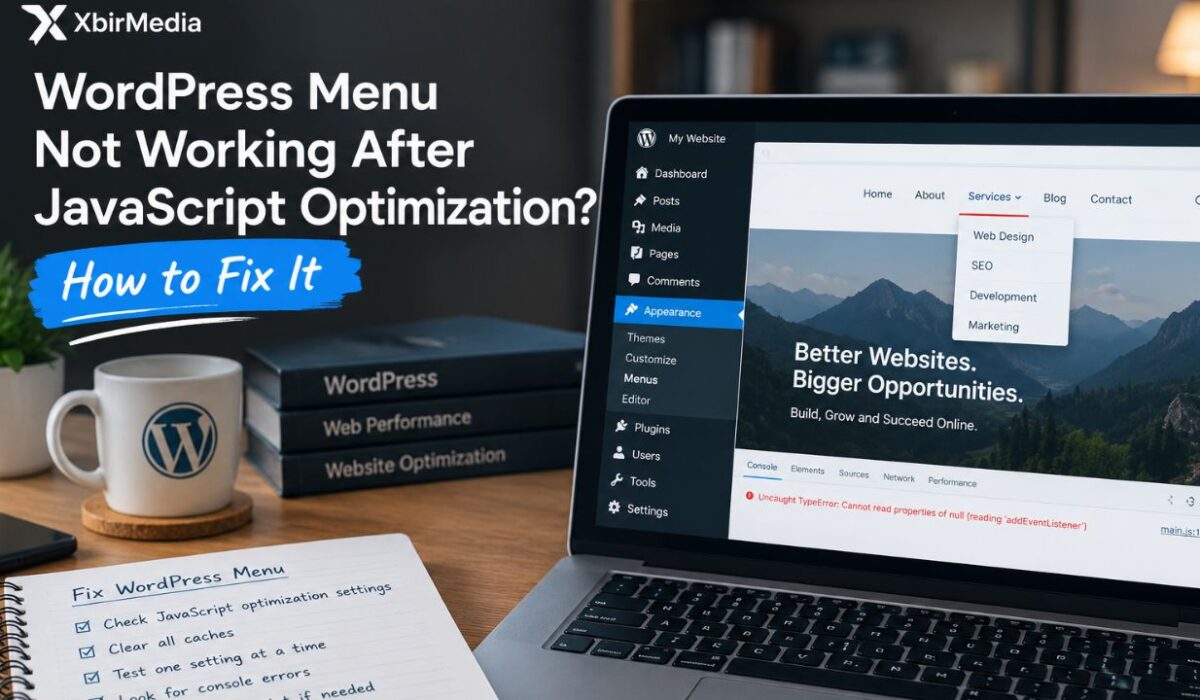
A WordPress navigation menu should work smoothly on desktop and mobile devices. However, a dropdown or hamburger menu can stop responding after you enable JavaScript optimization.
The problem may appear after changing settings in a caching plugin, updating your theme, or modifying how scripts load. Your menu may remain visible, but clicking it does nothing. In other cases, dropdowns work on desktop but fail on mobile.
These symptoms do not always indicate a problem with the menu itself. JavaScript optimization can sometimes interfere with the scripts responsible for interactive navigation. WordPress support discussions document similar issues involving JavaScript minification, combining, and delayed execution.
This guide explains how to identify the cause, test possible fixes, and restore your menu without unnecessarily sacrificing website performance.
Quick Answer: How Do You Fix a Broken WordPress Menu?
If your WordPress menu stops working after JavaScript optimization, temporarily disable the relevant JavaScript optimization setting in your caching plugin. Clear the plugin, CDN, and browser caches, then test the menu again.
If the menu works normally, re-enable optimization options individually to identify the conflicting setting. If necessary, exclude the specific navigation script from optimization rather than disabling every performance feature permanently.
Before changing settings, record your existing configuration so you can restore it if needed.
Why Does JavaScript Optimization Break WordPress Menus?
WordPress themes and navigation blocks often rely on JavaScript to handle dropdowns, mobile menus, and interactive buttons. Optimization plugins attempt to improve loading performance by modifying how scripts are delivered.
These changes can occasionally interfere with the order or timing expected by a theme or plugin.
1. JavaScript Delay or Defer Settings
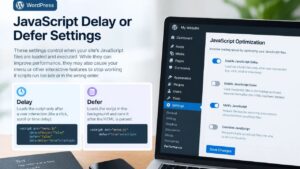
Delayed JavaScript waits until a specified interaction or condition before running. Deferred scripts generally execute after the document has been parsed.
If a navigation script runs later than the code or event it depends on, the menu may fail to initialize correctly. The exact behavior depends on the theme, scripts, and optimization settings.
2. JavaScript Minification
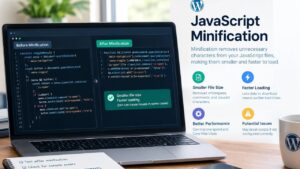
Minification removes unnecessary characters from code to reduce file size. Most properly configured minification works without problems, but certain scripts may behave differently after processing.
If the menu breaks immediately after enabling minification, temporarily disable that option to test whether it is involved.
3. Combining JavaScript Files
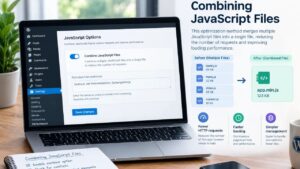
Some optimization plugins combine several JavaScript files into fewer files. This can reduce requests, but it may also expose dependency or execution-order problems.
A navigation script might rely on another script that must load first. Combining or rearranging files can sometimes disrupt that relationship.
4. Theme and Plugin Conflicts

Your theme, page builder, navigation block, and optimization plugin may all affect frontend behavior. A recent update can introduce a compatibility issue that did not exist previously.
Do not assume the caching plugin is always responsible. Confirm the cause through controlled testing.
Step-by-Step: Fix a WordPress Menu That Stops Working
Step 1: Confirm the Problem
Open your website in a private or incognito browser window. Test the menu on desktop and mobile, if possible.
Check whether the problem affects every page or only specific pages. Also test another browser to rule out an extension or browser-specific issue.
Record what happens:
- The hamburger button does nothing.
- Dropdown items do not open.
- The menu works on desktop but not mobile.
- The problem appears only on selected pages.
- The menu works when logged in but fails for logged-out visitors.
These details help narrow down the cause.
Step 2: Review Recent Changes
Think about what changed immediately before the menu stopped working.
Did you enable Delay JavaScript, Defer JavaScript, JavaScript Minify, or Combine JavaScript? Did you update your theme, page builder, or caching plugin?
If the issue started after a specific change, test that setting first. Avoid changing several unrelated options simultaneously because doing so makes the cause harder to identify.
Step 3: Temporarily Disable JavaScript Optimization
Open your WordPress dashboard and navigate to the performance plugin’s optimization settings.
The exact menu names vary by plugin. Look for settings related to JavaScript delay, defer, minification, or combining.
Temporarily disable the setting most closely associated with the problem. Save the configuration and purge the relevant caches.
Now open your website in a private browser window and test the navigation again.
If the menu works, you have evidence that the optimization configuration may be involved. If nothing changes, restore the setting and investigate other possible causes.
Important: Change one setting at a time. Keep a record of the original configuration and avoid disabling unrelated security or essential website features.
Step 4: Clear Every Relevant Cache
A browser may continue loading an older optimized JavaScript file after you change a setting. This can make a successful fix appear ineffective.
Clear the caches that apply to your setup:
- Your WordPress caching or optimization plugin.
- Your hosting provider’s cache, if enabled.
- Your CDN cache, if your site uses one.
- Your browser cache, or test in a fresh private window.
Reload the affected page and test the menu again. Purging caches is particularly important when an optimization plugin generates combined or minified files.
Step 5: Test Optimization Settings Individually
If disabling an optimization option restores the menu, re-enable options one at a time to identify the specific conflict.
For example, you might test JavaScript minification first, then combining, and finally delayed execution. The order should reflect which settings were recently changed and which are enabled on your website.
After each change, clear the relevant cache and test the same pages and devices.
If the menu breaks again after enabling one setting, disable that setting and repeat the test to confirm the result.
This process is more reliable than turning off every performance feature permanently.
Step 6: Exclude the Navigation Script if Necessary
Some optimization plugins allow you to exclude specific JavaScript files from minification, combining, deferring, or delayed execution.
If testing identifies a conflict, check the plugin and theme documentation to identify the script responsible for navigation. Add only the necessary file or documented exclusion.
Avoid copying random exclusion rules from unrelated websites. Different themes and plugins use different script names, and an overly broad exclusion can reduce optimization benefits unnecessarily.
If you cannot identify the correct file, ask the theme or plugin developer for guidance before changing advanced settings.
Step 7: Check for JavaScript Errors
If the menu remains broken, use your browser’s developer tools to inspect the JavaScript console.
In Chrome or Edge on Windows, press F12 or Ctrl + Shift + J to open developer tools and view the Console.
Reload the affected page and look for relevant error messages. Record the message and associated script filename. Do not assume that every console warning is responsible for the menu problem.
WordPress provides an official guide to diagnosing JavaScript errors through browser developer tools. You can consult the WordPress JavaScript debugging guide.
If the error points to a theme or plugin script, share the details with its developer. Avoid editing core WordPress files or inserting custom JavaScript unless you understand the change and have a reliable backup.
Step 8: Check Theme and Plugin Compatibility
If optimization settings are not the cause, check whether the problem began after a theme, plugin, or WordPress update.
Review the relevant changelog and support documentation. Update outdated components where appropriate, after backing up your website and testing changes safely.
If a plugin conflict remains likely, use a staging site where possible. Deactivating plugins on a live website can affect forms, layouts, security, and other important features.
If you cannot reproduce the problem safely on staging, ask your hosting provider or developer to investigate.
Troubleshooting by Symptom
| Symptom | What to investigate |
|---|---|
| Hamburger button does nothing | Navigation JavaScript, delayed execution, or console errors |
| Dropdown fails after minification | Minification compatibility and script dependencies |
| Menu works on desktop but not mobile | Mobile navigation scripts, theme settings, and browser differences |
| Menu fails only on certain pages | Page-specific scripts, templates, or optimization rules |
| Menu works when logged in only | Cached frontend output, CDN behavior, or differences between logged-in and logged-out views |
| Menu remains broken after disabling optimization | Theme, plugin, browser, or JavaScript errors |
These are diagnostic starting points, not guaranteed explanations. Confirm the cause before applying a permanent fix.
How to Prevent WordPress Menu Problems
The safest approach is to treat performance optimization as a series of tests rather than enabling every available option at once.
Before making changes, create a backup or use a staging environment. Keep a record of the original settings and test important pages after each adjustment.
Test your navigation on both desktop and mobile. Check dropdowns, hamburger buttons, keyboard navigation, and other interactive elements that your theme supports.
After updates, revisit the affected pages and confirm that menus still work for logged-out visitors. A good performance configuration should improve loading behavior without breaking essential website functions.
You should also avoid assuming that combining or delaying every script will always improve performance. The best configuration depends on your site’s theme, plugins, hosting environment, and actual performance measurements.
Conclusion
A WordPress menu that stops working after JavaScript optimization does not automatically mean you need to replace your theme or remove your caching plugin.
Start by reproducing the issue, reviewing recent changes, and testing the relevant optimization setting. Clear caches after each change, inspect JavaScript errors, and use a specific script exclusion only when you have evidence that it is needed.
The goal is to maintain both reliable navigation and good website performance. By testing one change at a time, you can narrow down the cause and avoid unnecessary changes to your WordPress setup.
Frequently Asked Questions
Why did my WordPress menu stop working after enabling JavaScript optimization?
The optimization settings may have changed when a navigation script runs or how it interacts with another script. However, theme errors, plugin conflicts, and browser issues can cause similar symptoms.
Should I disable JavaScript optimization permanently?
Not necessarily. First, identify which setting causes the issue. If the conflict is limited to one script, a specific exclusion may allow you to retain other optimization benefits.
Can JavaScript minification break a mobile menu?
It can in some configurations, although minification usually works correctly. Test the setting separately and inspect relevant console errors before deciding whether it is responsible.
Why does my menu work when I am logged in but not for visitors?
Logged-in users may receive different cached content or bypass certain optimization rules. Compare the logged-in and logged-out versions, purge caches, and check your caching and optimization configuration.
How do I know which JavaScript file controls my menu?
Check the browser console, your theme documentation, or the navigation component’s source files. If you are unsure, provide the relevant error message and filename to the theme developer rather than excluding scripts at random.
Will fixing the menu affect my PageSpeed score?
It may change performance measurements if you disable or adjust optimization features. However, a working navigation menu is essential. Measure performance after the fix and test alternative configurations without sacrificing usability.